Select Browser Version:
It is possible to adjust the view in browser to search on a map. This is accomplished by selecting the screen layout in the upper right corner of the screen.
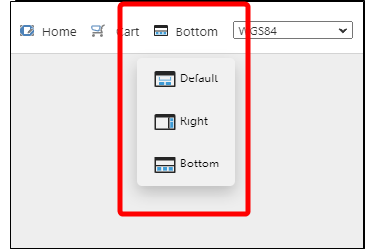
The screen layout determines where the search results will appear on the screen in relation to the map.
For our examples, we have selected Bottom as the layout.
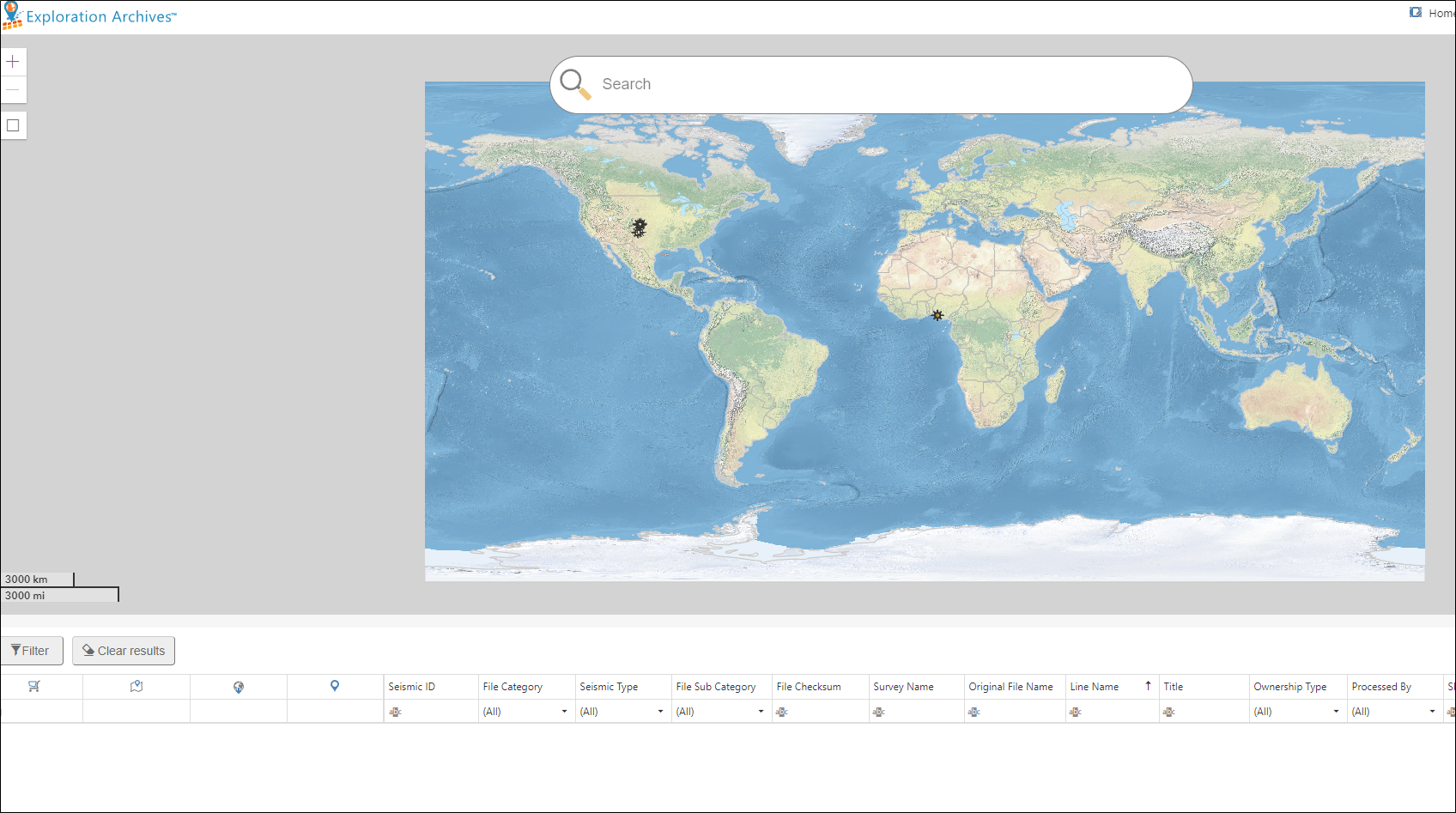
To perform a map search:
-
Enter your search phrase in the search field.

-
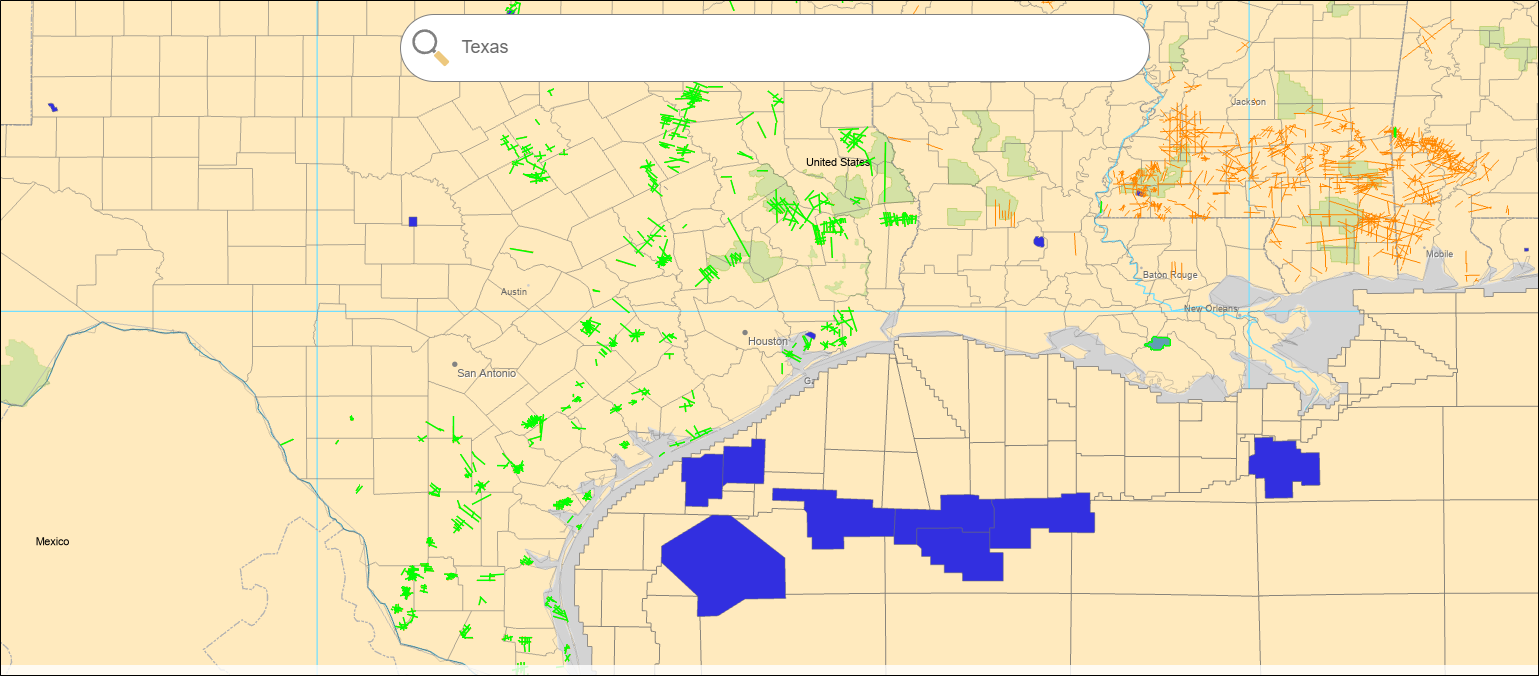
The map will populate, showing the search results.
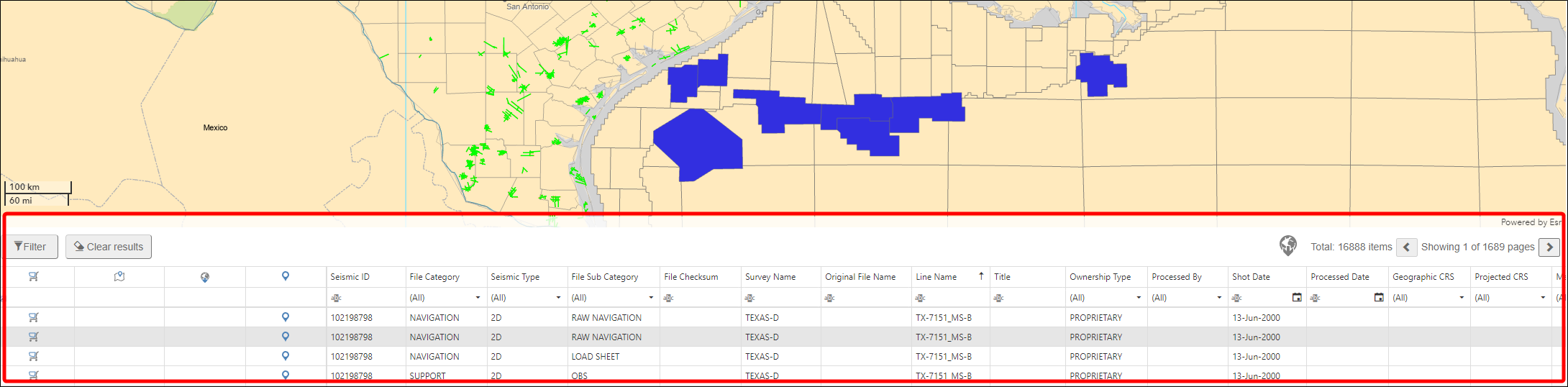
The results also appear in the text area.
 Note:
Note:The search field currently accepts search phrases.
-
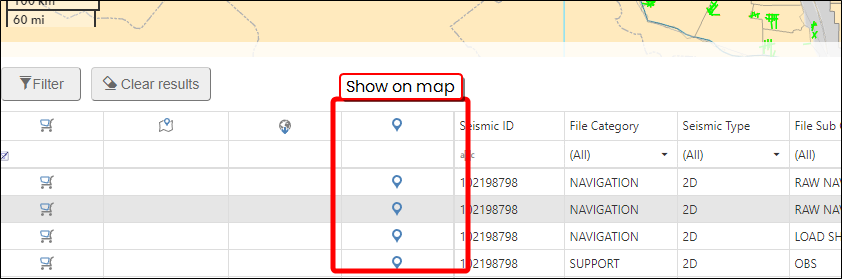
Looking at the search records, you can see the location of the record on the map, by selecting show on map.
The search function is a quick method for locating seismic. The search function includes the option to either add the results to the grid or to display the seismic on the map.
To search seismic:
-
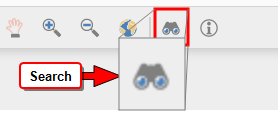
Click Search on the map toolbar. A search window opens.
-
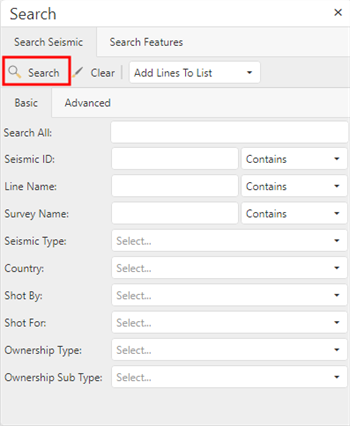
In the Search Seismic tab, enter the search criteria in the appropriate fields. For Seismic ID, Line Name and Survey Name, use the filter options next to the entry fields.
 Note:
Note:The search fields do not support wildcard characters (* or %). The Advanced tab contains product search attributes.
-
Select either Add Lines to List or Select Lines on Map at the top of the window.
-
Click Search and the results populate in the upper grid of the Seismic Details tab.
To search features:
-
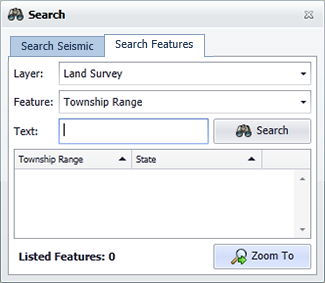
Select the Search Features tab in the Search window.
-
Click the down arrow in the Layer field to select a layer.
-
Click the down arrow in the Feature field to select a feature.
-
Click Search.
-
Select the features in the results panel and click Zoom To. The map view will zoom to the location of the features.
-